Setup VSCode Server — develop from any device
VSCode is officially my favorite integrated development environment (IDE). Some people refuse to categorize it as an IDE, but personally I think it qualifies as an IDE with plug-ins. It is free, light-weight (compared to JetBrain’s IDEs or Visual Studio) and quite powerful with zillions of plug-ins. VSCode is what brought us language server protocol, which has become the de-facto standard in any code editors and any programming languages. Compared to tools dedicated to specific languages, such as CLion for C++, GoLand for Go, PyCharm for Python, VSCode may lack some advanced features, but it is free and open-source. What more do you expect?
Recently, VSCode team announced an innovative feature called VSCode Sever which allows to run VSCode instance on a computer and connect to it from any device, even from just a web browser. This means that one can run a VSCode server instance on a powerful home workstation and connect and develop from practically any device that has a web browser. You no longer need to carry around a heavy powerful computer for dev work — all you need is a decent device with good-enough power for web browsing. This has made me consider migrating from my powerful but heavy 16 inch Macbook Pro to lightweight 15 inch Macbook Air. If you are also as excited as I am, let’s dive into how to setup it up.
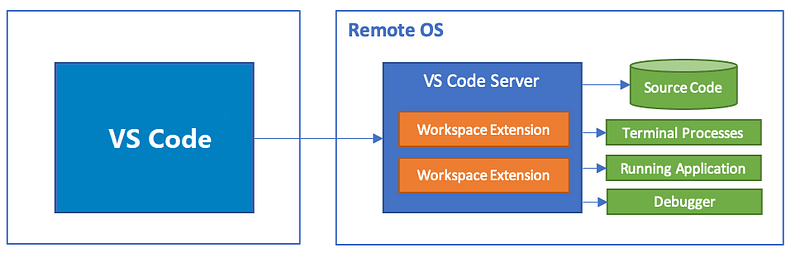
On the server
You will need a server computer (host). Though not necessary, I will use Docker to run the VSCode server inside a container. You can also directly run the VSCode Server app without containerization, but I prefer to run via a container, as it provides more security and automation. The server needs to be connected to the internet and port 8000 should be open if you have a firewall or router. Lastly, you need either a Github account or Microsoft account. For this example, we will use Github account.
First, create Dockerfile below
FROM ubuntu:22.04

RUN apt update && export DEBIAN_FRONTEND=noninteractive && apt install -y --no-install-recommends \
  tzdata gnome-keyring wget curl python3-minimal ca-certificates git build-essential

# install vscode-server
RUN apt install software-properties-common apt-transport-https wget -y
RUN wget -q https://packages.microsoft.com/keys/microsoft.asc -O- | apt-key add -
RUN add-apt-repository "deb [arch=amd64] https://packages.microsoft.com/repos/vscode stable main" -y
RUN apt install code -y

RUN useradd -rm -s /bin/bash -g root -G sudo -u 1001 dev
RUN echo dev:docker | chpasswd

RUN apt install -y sudo

USER dev
WORKDIR /home/dev/Repo

# expose port
EXPOSE 8000
We are setting up an environment to run VSCode Server and creating a local user dev with password docker. We are also creating /home/dev/Repo directory in which we will store dev files and folders.
To build the container image, simply run
docker build -t vscode-server .
When it comes to running the container, there are two options in terms of mounting the volume. The first is to directly mount the host computer’s filesystem, in which case you can connect to the server and modify the files and folders on the host system directly. The second option is to create a dedicated Docker volume which will contain the dev filesystem. With this option, you are only exposing the Docker volume and not the host filesystem directly.
To run with the first option, we can run
docker run --rm -d -v /path/to/dev/folder/on/server:/home/dev/Repo vscode-server code tunnel
Here, you specify which path in the server to be mounted to the container so that you can connect and open, edit, and run.
To run with the second option, we can run
# create docker volume which shall store dev filesystem
docker volume create dev
# run vscode-server container mounting docker dev volume
docker run --rm -d -v dev:/home/dev/Repo vscode-server code tunnel
Either way, the docker run command will print out CONTAINER_ID. You can also run docker container ls to list the running container whose image is vscode-server. The container executes code tunnel command which will link the tunnel through Github account. We need to read in log from the container
docker logs CONTAINER_ID
*
* Visual Studio Code Server
*
* By using the software, you agree to
* the Visual Studio Code Server License Terms (https://aka.ms/vscode-server-license) and
* the Microsoft Privacy Statement (https://privacy.microsoft.com/en-US/privacystatement).
*
[2023-12-17 02:33:28] info Using Github for authentication, run `code tunnel user login --provider <provider>` option to change this.
To grant access to the server, please log into https://github.com/login/device and use code XXXX-XXXX
This command will show the log of the container, which asks you to log into https://github.com/login/device and enter use code. Once you do, it successfully links the tunnel through your Github account.
On any device with a web browser
Now, you can run a VSCode instance on a web via opening up https://vscode.dev/ on a web browser and select Connect to Tunnel button on the left pane.
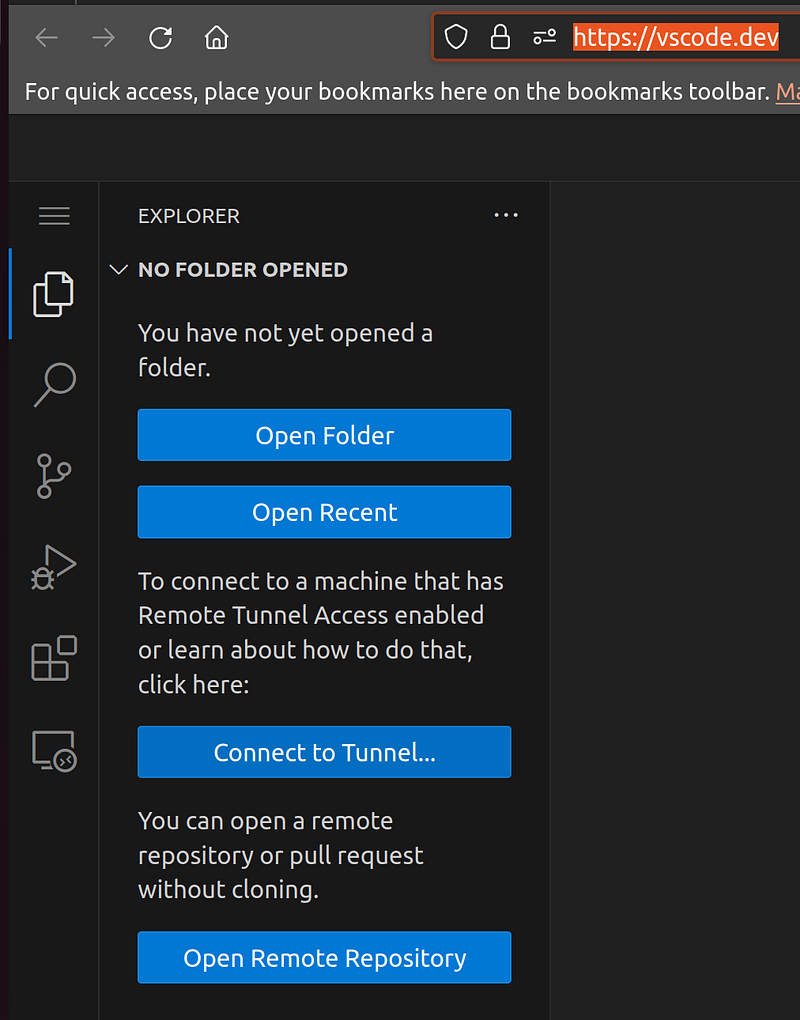
This will prompt you to select an account (Github or Microsoft), authenticate, and finally display the running instance of the server. You will be able to install extensions, run terminal, edit files, debug, and run remotely through the browser.
If you prefer desktop VSCode app to connect to the tunnel, you can do so by installing Remote-Tunnels extension as well.
Note that the docker image is minimal and does not have much dev tools installed. You can edit the Dockerfile and add packages that you need for your own dev environment. You can also find the Dockerfile in this repo.
Hope this unifies your dev setup wherever you are and on whichever device.