Typescript — automated VSCode setup
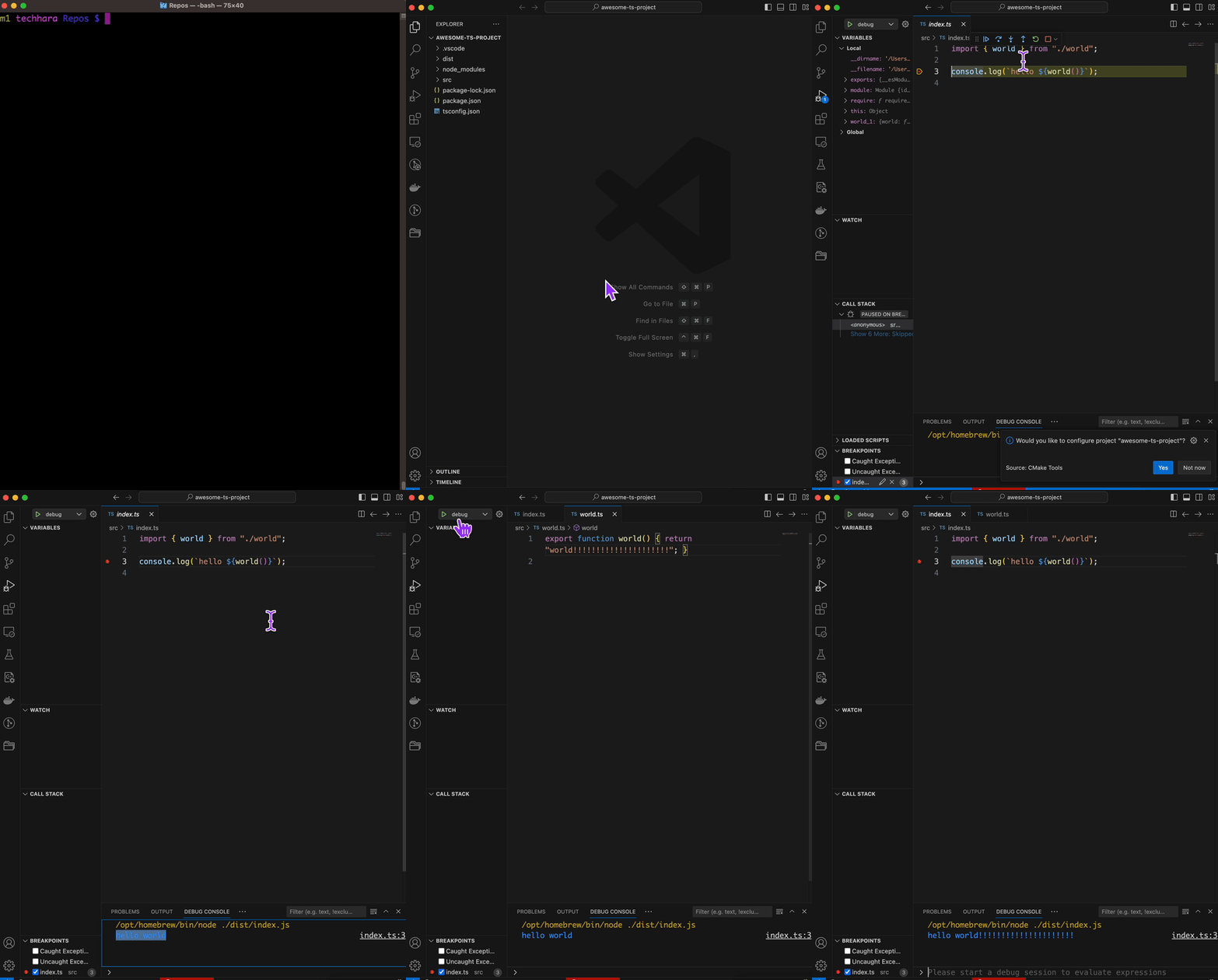
I’m new to Javascript/Typescript, and I found it extremely frustrating to setup minimal dev TS environment on VSCode where you can debug your code.
Prerequisite
You would need node on your system. In fact, not just any node but at least node version 16 or higher. You can check your node version with
node --version
v21.7.1
You also need npm. Run the following to install TS module globally.
npm i -g typescript
Setup
Below is the shell script setup_ts.sh you can run to setup a new project.
PRJNAME=$1

mkdir $PRJNAME
cd $PRJNAME
npm init -y
npm i --save-dev typescript

# we assume typescript is installed globally
tsc --init --sourceMap --rootDir src --outDir dist

# create source files
mkdir src
cat > src/index.ts <<'EOL'
import { world } from "./world";

console.log(`hello ${world()}`);
EOL

cat > src/world.ts <<EOF
export function world() { return "world"; }
EOF

# create vscode config file
mkdir .vscode

cat > .vscode/launch.json << 'EOL'
{
  "version": "0.2.0",
  "configurations": [
    {
      "type": "node",
      "request": "launch",
      "name": "debug",
      "skipFiles": [
        "<node_internals>/**"
      ],
      "preLaunchTask": "tsc: build - tsconfig.json",
      "program": "${workspaceFolder}/dist/index.js",
      "outFiles": [
        "${workspaceFolder}/**/*.js"
      ]
    }
  ]
}
EOL

# compile
tsc

# launch vscode
code .
To run this script, simply provide a project name, and it will create a new folder as the project name and setup the all you need.
# run this in the directory where you want to create a new project directory
bash setup_ts.sh awesome-ts-project
This should create a new project and launch VSCode. It sets up the debug launch config so you can immediately debug this boilerplate code. You can see the full source code here.