Logging LSP traffic for VSCode
In the previous article, I described a method to sniff language server protocol (LSP) traffic between a client (typically an IDE) and the server. Today, I want to describe an easier alternative for those VSCode extensions talking to a language server, with one limitation: it will only log the client-side messages.
Most VSCode extensions on the market are open-sourced in that its entire extension directory exists under ~/.vscode/extensions folder. For example, let’s have a look at rust-analyer extension, but this method works for virtually all VSCode extensions that utilize LSP. More on that later.
On my macOS, there is a folder ~/.vscode/extensions/rust-lang.rust-analyzer-0.3.2078-darwin-arm64/ for contains all the files for the extension.
Most VSCode extensions utilizing LSP will depend on the vscode-languageclient package. We can find this out by looking at the package.json file of the extension root directory.
...
  "dependencies": {
    "@hpcc-js/wasm": "^2.13.0",
    "anser": "^2.1.1",
    "d3": "^7.8.5",
    "d3-graphviz": "^5.0.2",
    "vscode-languageclient": "^8.1.0"
  },
  ...
}
As you can see, rust-analyzer also depends on vscode-languageclient package. If this is the case, we can easily output all LSP traffic by simple configuration change of extension-name.trace.server. First, search for trace.server string from package.json file
grep -n -F trace.server package.json
456:     "rust-analyzer.trace.server": {
Starting at line 456, we can see the following default config for trace.server
...
"rust-analyzer.trace.server": {
  "type": "string",
  "scope": "window",
  "enum": [
     "off",
     "messages",
     "verbose"
  ],
  "enumDescriptions": [
     "No traces",
     "Error only",
     "Full log"
  ],
  "default": "off",
  "description": "Trace requests to the rust-analyzer (this is usually overly verbose and not recommended for regular users)."
  },
...
There are available options in enum: off, messages, and verbose. The default is off, but you can switch it to verbose to log full traffic, as shown below
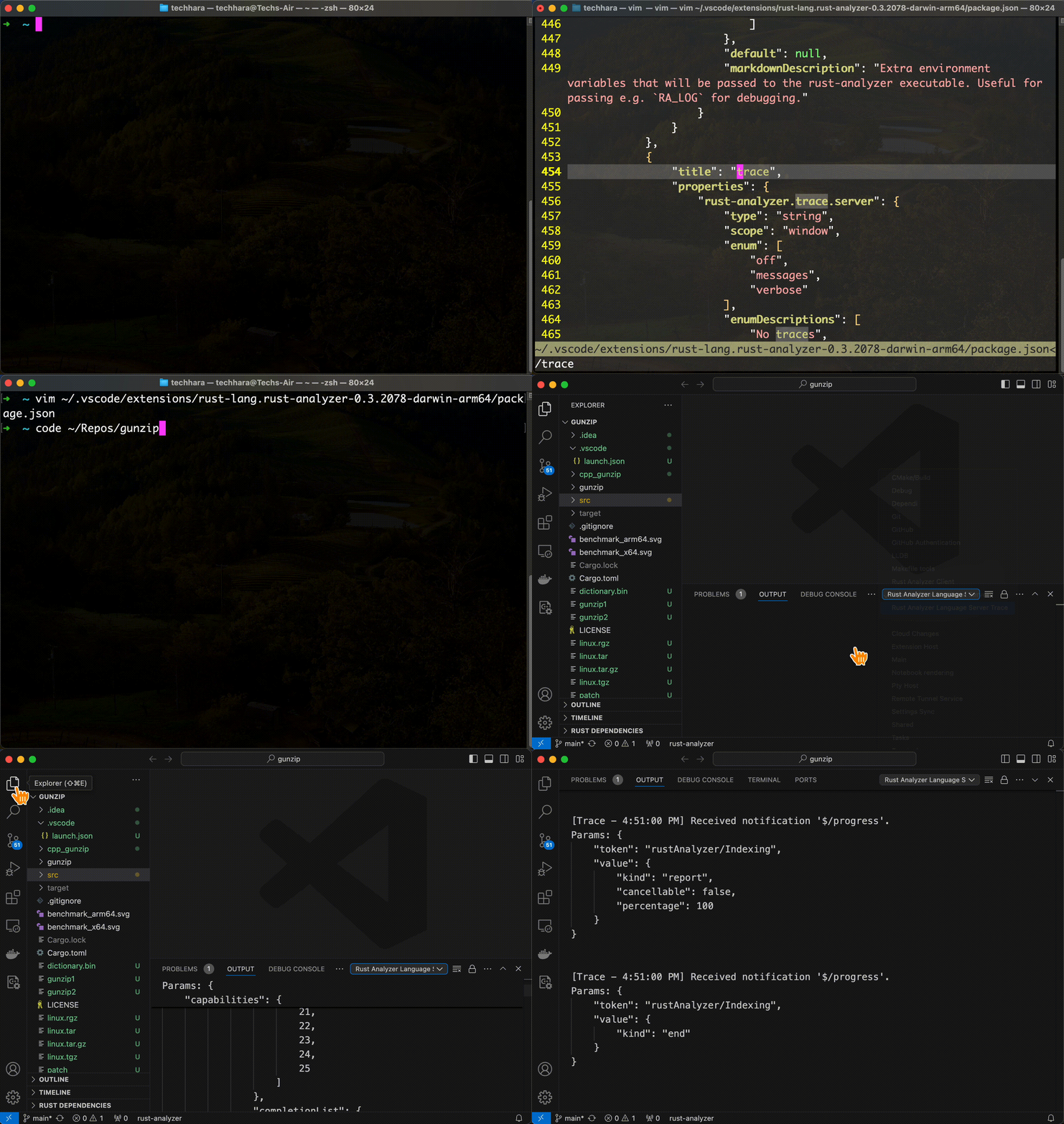
Here, I enabled the server.trace verbose logging, restarted the VSCode, then opened a Rust project. As you can see, VSCode logs all the LSP traffic.
This method works for any extension that depends on vscode-languageclient, which is virtually all VSCode extensions employing LSP. Hope this helps understand/debug LSP!