Call C++ from Flutter on macOS and iOS
Flutter is my go-to framework when developing a native app. Though there are a huge number of libraries/packages for Dart/Flutter at https://pub.dev/, sometimes we need to be able to incorporate some C/C++ library in the app. Today, let’s dive into how to integrate dynamic C++ library into Flutter and be able to call it on macOS and iOS apps.
For excruciating details, check out my video tutorial
Exposing C-API
The first thing to note is that Dart/Flutter supports only C-API and not C++. Hence, if you have an existing library in C++, you need to convert any C++ API into C API with some wrapper. As an example, let’s create a very simple C++ library which takes in file path and returns its full content as bytes. The convenient C++ API would be
std::string read_file(std::string const& path)
but we need to expose as a hideous C-API:
typedef struct {
    uint8_t *data;
    int length;
} ByteArray;

ByteArray read_file(const char* path);
Not only that, we need to wrap around this the header file with special directives to prevent name mangling. Below would be the header file we need
// load.h
#ifdef __cplusplus
extern "C" {
#endif

typedef unsigned char uint8_t;

typedef struct {
    uint8_t *data;
    int length;
} ByteArray;

ByteArray read_file(const char* path);

#ifdef __cplusplus
}
#endif
Next step is to implement the exposed functions in C or C++.
// load.cc
#include "load.h"
#include <fstream>
#include <string>

using namespace std;

ByteArray read_file(const char *path)
{
    ByteArray byte_array;
    std::ifstream file(path);
    string data{
        std::istreambuf_iterator<char>(file),
        std::istreambuf_iterator<char>()};
    byte_array.data = new uint8_t[data.size()];
    byte_array.length = data.size();

    std::copy(begin(data), end(data), byte_array.data);
    return byte_array;
}
Build for each platform
Next, we need to be able to compile this for the specific platform. There are actually three cases: macOS, iOS, and Simulator. Below shows a simple script to build as a dynamic library for each platform
mkdir -p bin/macos bin/ios bin/simulator

# macOS
g++ \
-std=c++17 \
-g \
-O3 \
-shared \
-fPIC \
-o bin/macos/libload.dylib \
src/load.cc

# iOS
g++ \
-std=c++17 \
-g \
-O3 \
-shared \
-fPIC \
-isysroot /Applications/Xcode.app/Contents/Developer/Platforms/iPhoneOS.platform/Developer/SDKs/iPhoneOS.sdk/ \
-o bin/ios/libload.dylib \
src/load.cc

# simulator
g++ \
-std=c++17 \
-g \
-O3 \
-shared \
-fPIC \
-isysroot /Applications/Xcode.app/Contents/Developer/Platforms/iPhoneSimulator.platform/Developer/SDKs/iPhoneSimulator.sdk/ \
-o bin/simulator/libload.dylib \
src/load.cc
The main difference is specifying the platform with -isysroot argument.
Generating Dart Binding
Now that we have the library file and its C-API, we need to generate Dart binding. We could do this automatically using ffigen package. First, we need to define its config specifying the C-API header function
name: AssetLoader
description: Bindings to `load.h`.
output: 'lib/generated_bindings.dart'
headers:
  entry-points:
    - 'src/load.h'
and then automatically generate the binding
dart pub global run ffigen --config=config.yaml
This will generate the binding file
// AUTO GENERATED FILE, DO NOT EDIT.
//
// Generated by `package:ffigen`.
// ignore_for_file: type=lint
import 'dart:ffi' as ffi;

/// Bindings to `load.h`.
class AssetLoader {
  /// Holds the symbol lookup function.
  final ffi.Pointer<T> Function<T extends ffi.NativeType>(String symbolName)
      _lookup;

  /// The symbols are looked up in [dynamicLibrary].
  AssetLoader(ffi.DynamicLibrary dynamicLibrary)
      : _lookup = dynamicLibrary.lookup;

  /// The symbols are looked up with [lookup].
  AssetLoader.fromLookup(
      ffi.Pointer<T> Function<T extends ffi.NativeType>(String symbolName)
          lookup)
      : _lookup = lookup;

  ByteArray read_file(
    ffi.Pointer<ffi.Char> path,
  ) {
    return _read_file(
      path,
    );
  }

  late final _read_filePtr =
      _lookup<ffi.NativeFunction<ByteArray Function(ffi.Pointer<ffi.Char>)>>(
          'read_file');
  late final _read_file =
      _read_filePtr.asFunction<ByteArray Function(ffi.Pointer<ffi.Char>)>();
}

final class ByteArray extends ffi.Struct {
  external ffi.Pointer<ffi.Uint8> data;

  @ffi.Int()
  external int length;
}
Adding to Xcode Project
Now, we need to make sure to bundle the library within the app through Xcode. Open up the Xcode workspace in macos or ios directories
open macos/Runner.xcworkspace
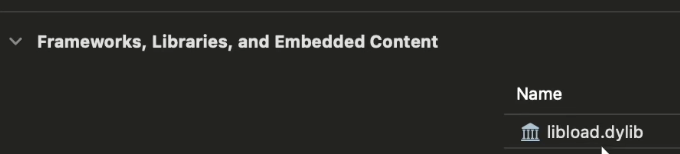
and add the library for the corresponding target into General → Frameworks, Libraries, and Embedded Content section
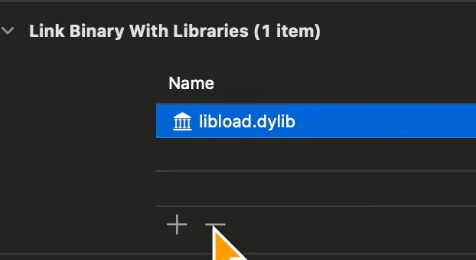
Then, you need to remove the same library from Build Phases → Link Binaries with Libraries section
Call from Flutter
Now it is as easy as just calling the library within the Flutter code through the binding. Here is an example code
final loader = AssetLoader(DynamicLibrary.open('libload.dylib'));
final byteArray = loader.read_file(
  assetPath.toNativeUtf8().cast<ffi.Char>(),
);
final uint8List = byteArray.data.asTypedList(byteArray.length);
setState(() {
  _output = utf8.decode(uint8List);
});
We went through the whole step rather quickly here, but you should be able to find detailed instructions in the video linked above. Also, check out the full source code of the demo app.